
In the fast-paced world of software architecture, the gap between a mental model and a visual representation often creates friction. Visual Paradigm’s VPasCode bridges this gap using a “diagram-as-code” philosophy, but the recent interface updates have taken this capability to a new level by integrating Artificial Intelligence directly into the core workflow. This tutorial explores how to leverage the new, consolidated AI Tools menu to generate, modify, and translate system diagrams with unprecedented efficiency.
Understanding the Core Philosophy: Diagram-as-Code
Before diving into the AI features, it is essential to understand the foundation of VPasCode. Unlike traditional drag-and-drop tools where you manually place boxes and connectors, VPasCode allows you to define system structures using a specific text syntax. This approach ensures that your diagrams are version-controllable, reproducible, and logically structured.
The system operates on a simple principle: you write the definition, and the engine renders the visual. This text is not just a description; it is the source code for your architecture. By typing logical flows rather than manually drawing arrows, you reduce the cognitive load associated with alignment and layout, allowing you to focus entirely on the system’s logic.
The Unified AI Interface: One Menu, Three Powerful Tools
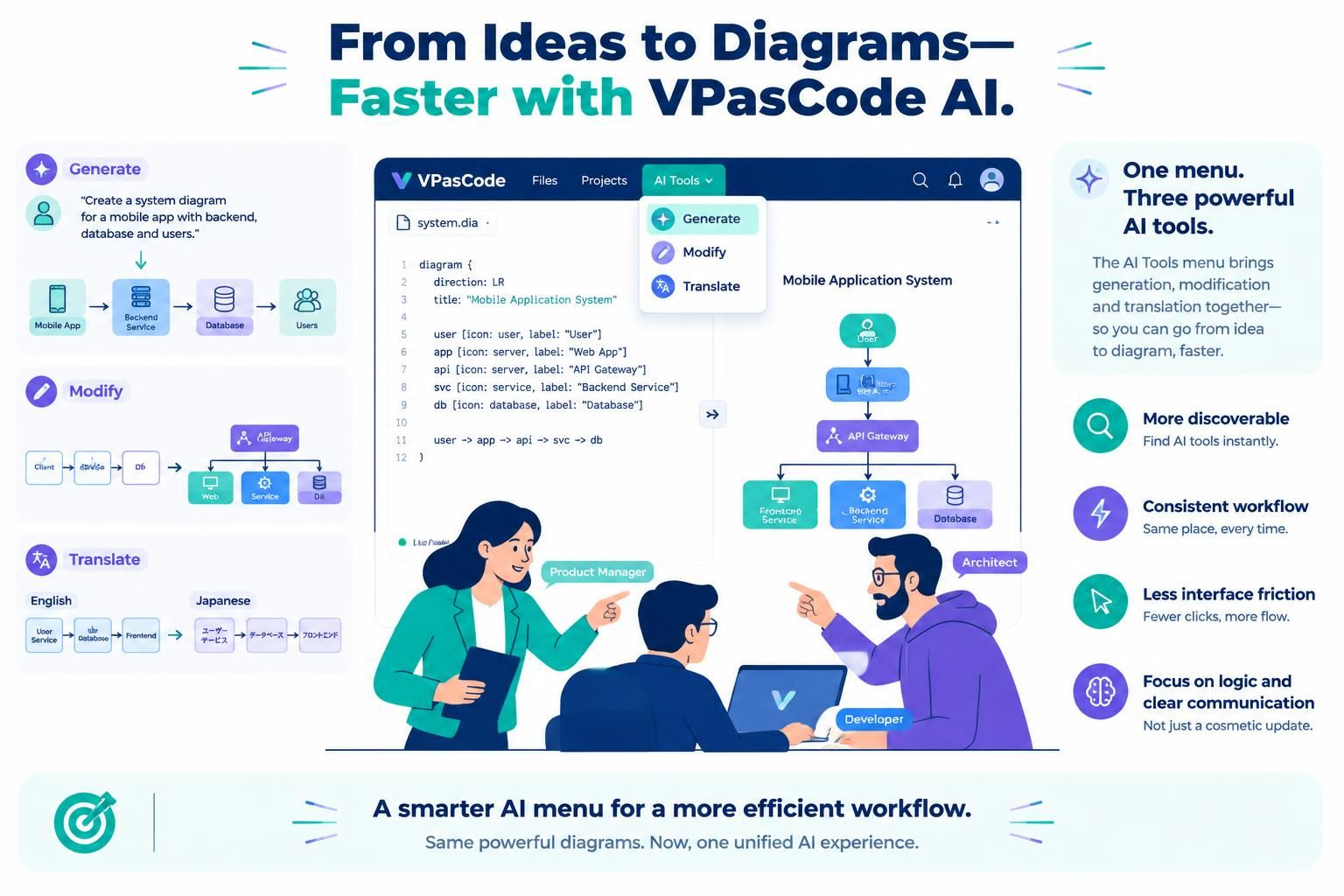
The most significant change in the latest VPasCode release is the consolidation of AI capabilities. Previously, AI features might have been scattered across different menus or dialogs. Now, a single AI Tools dropdown in the application bar provides access to three distinct modes of operation: Generate, Modify, and Translate.
This unified interface is designed to reduce “interface friction.” Instead of hunting for features, you have a consistent place to start. Whether you are an architect refining a logic flow or a product manager brainstorming a new feature, the tools are always one click away.
1. Generate: From Text to Visuals
The Generate tool allows you to create a system diagram from scratch using natural language. This is particularly useful for rapid prototyping. Instead of writing complex syntax from memory, you can simply describe what you need in plain English.
For example, consider the scenario where you want to visualize a standard mobile application structure. You might type a prompt like:
"Create a system diagram for a mobile app with backend, database and users."VPasCode’s AI engine interprets this request, understands the entities involved, and automatically constructs the underlying code and the corresponding visual diagram. It places the User, Mobile App, Backend Service, and Database in a logical flow, applying appropriate icons and connectors.
2. Modify: Refining Your Logic
Once a diagram is generated or written, the real work begins. The Modify tool allows you to alter existing diagrams using natural language commands. This feature is powerful for iterative design.
If your architecture changes—for instance, if you decide to introduce an API Gateway to handle traffic—you don’t need to redraw the diagram. You can simply instruct the AI to:
"Add an API Gateway between the mobile app and the backend service."The system intelligently inserts the new node into the existing graph, maintaining the layout and connection logic. This capability transforms the diagramming process from a static documentation task into a dynamic, conversational modeling session.
3. Translate: Bridging Global Teams
Collaboration often spans different languages and regions. The Translate feature in the AI menu addresses this by converting your diagram’s labels and potentially the entire diagram’s context into different languages.
As shown in the interface, you can translate a diagram from English to Japanese instantly. This is invaluable for international teams where a Product Manager might speak one language and a Developer another. It ensures that the architectural intent remains clear regardless of the language used for the labels.
Step-by-Step Workflow
To effectively use the new VPasCode AI tools, follow this structured workflow:
- Open the AI Menu: Locate the AI Tools button in the top navigation bar.
- Select Your Mode: Choose between Generate, Modify, or Translate based on your current task.
- Input Your Prompt: Type your natural language instruction. Be specific about the components and relationships you want to see.
- Review and Refine: Observe the generated code and the visual output. The AI provides a draft that you can further refine using the code editor or by issuing follow-up natural language commands.
- Iterate: Use the Modify tool to add details or change logic as your requirements evolve.
This workflow significantly reduces the time spent on formatting and layout, allowing professionals to focus on what matters most: refining their logic and communicating their ideas clearly.
Conclusion
The integration of AI into VPasCode represents a strategic shift toward a more discoverable and efficient workflow. By grouping generation, modification, and translation into a single, intuitive menu, Visual Paradigm has reduced the barrier to entry for complex system modeling. Whether you are starting from a blank page or refining an existing architecture, the unified AI experience empowers you to move from ideas to diagrams faster than ever before.